
Connecting GitHub repository
To connect your project's GitHub account to Pulse and track developers' pull requests and the related activity, follow the instructions below.
Step 1. Generate GitHub access token
-
Go to https://github.com/settings/personal-access-tokens/new to create a new fine-grained personal access token
-
Add Token name, e.g Pulse read-only token
-
Select resource owner
-
Set token expiration date
-
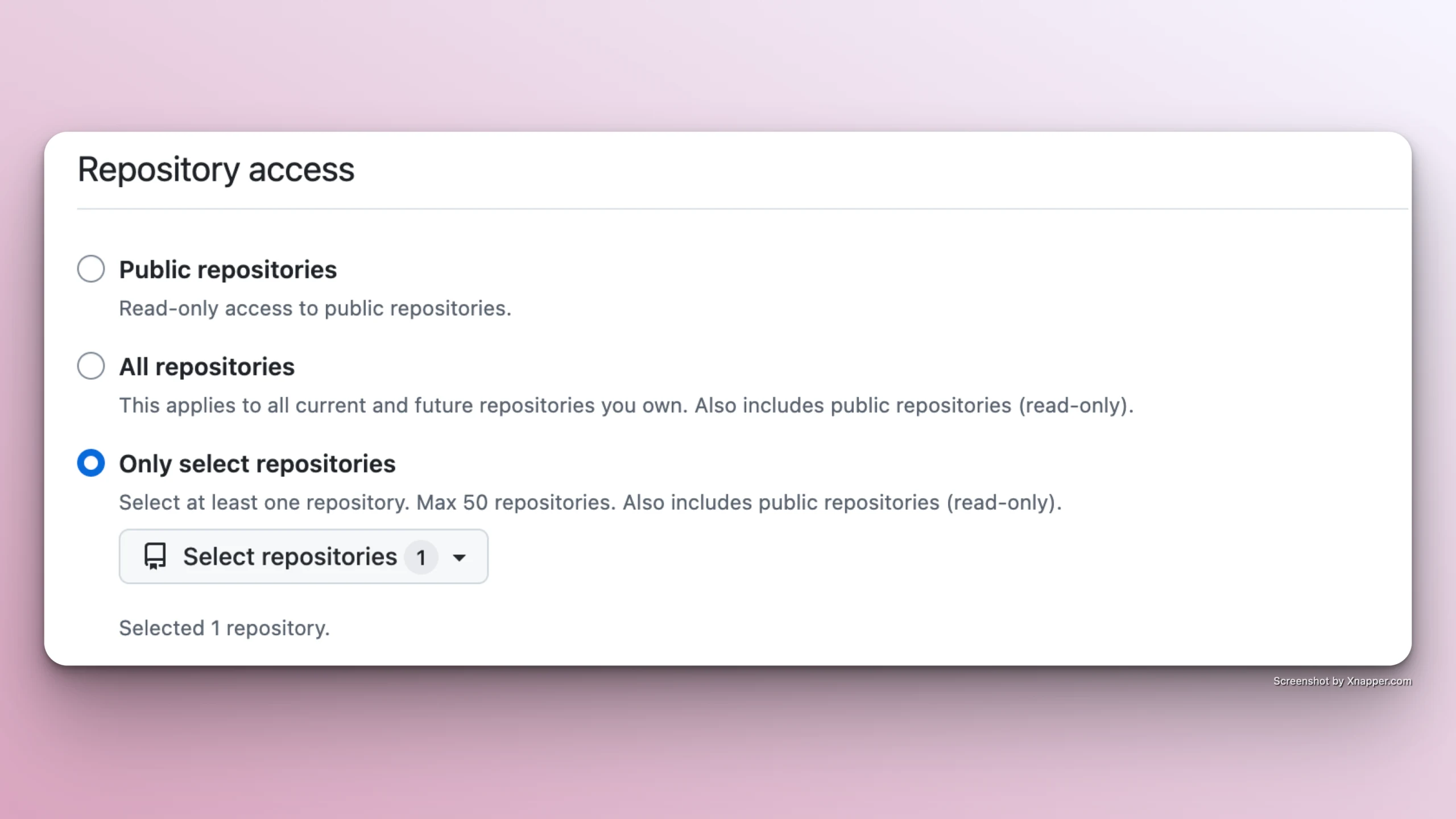
Repository access: set to "Only select repositories" and select the project's repo:
-
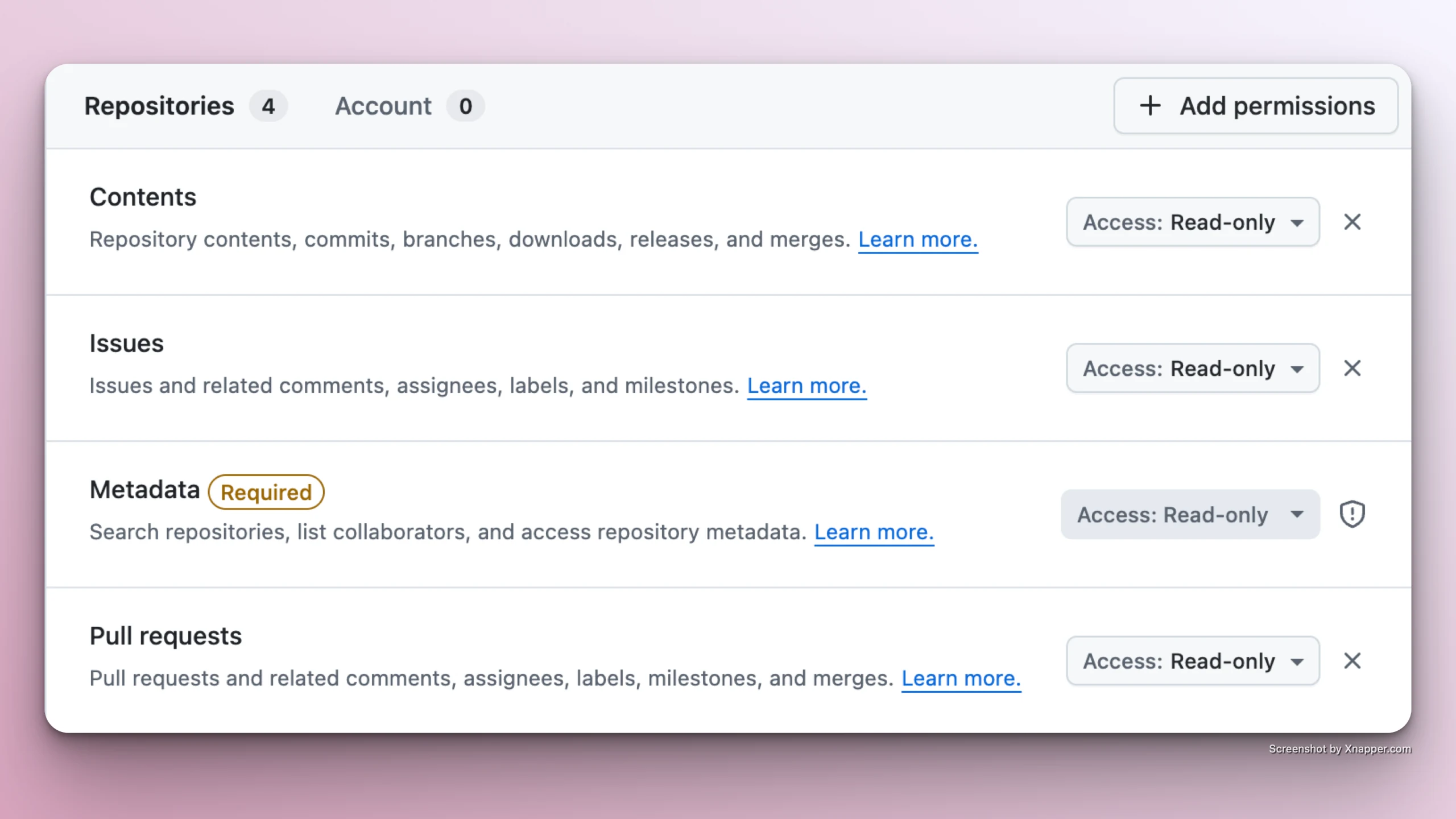
Choose permissions: Contents, Pull requests and Issues with read-only access
-
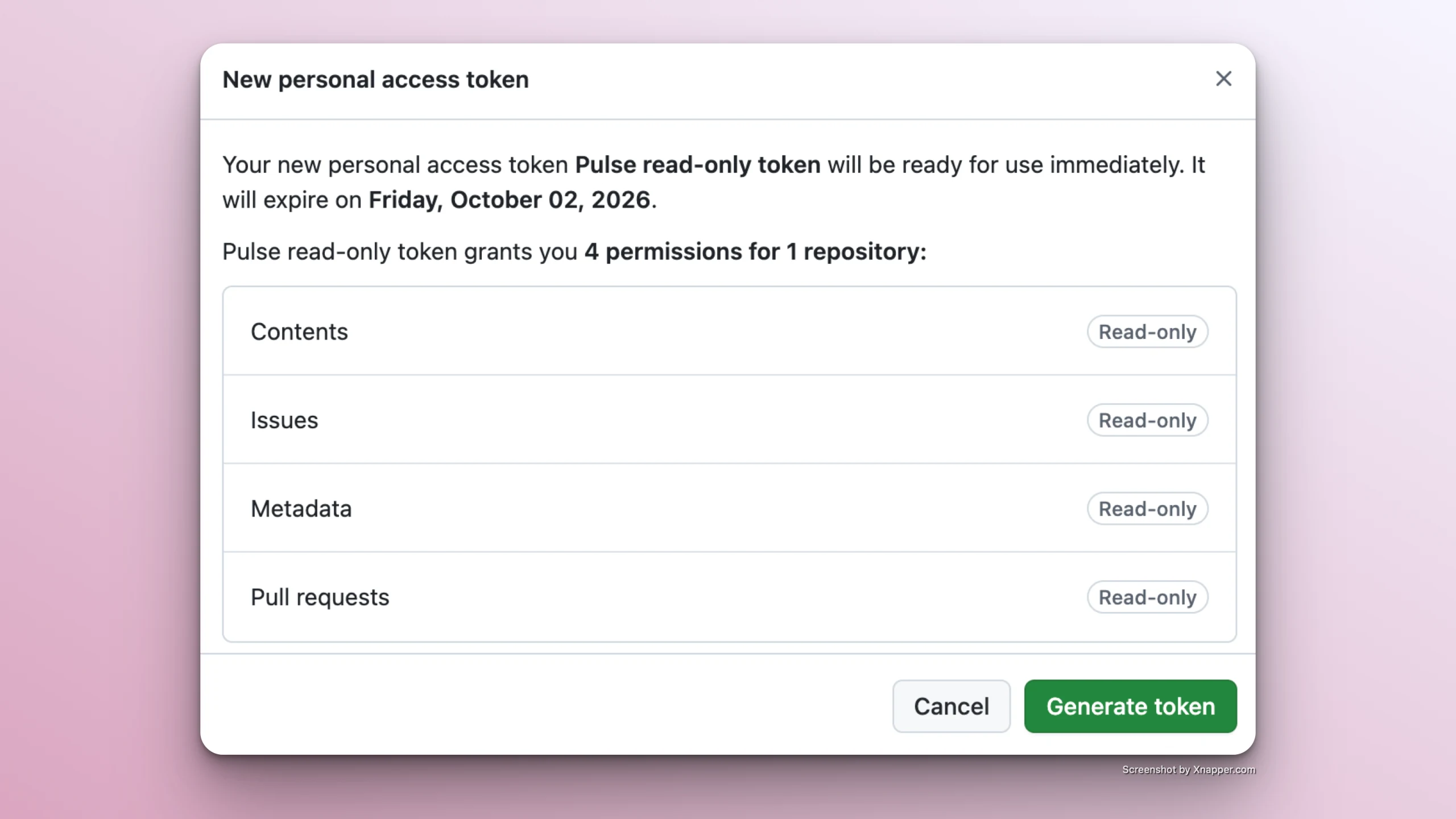
Click "Generate token" button and confirm generation
-
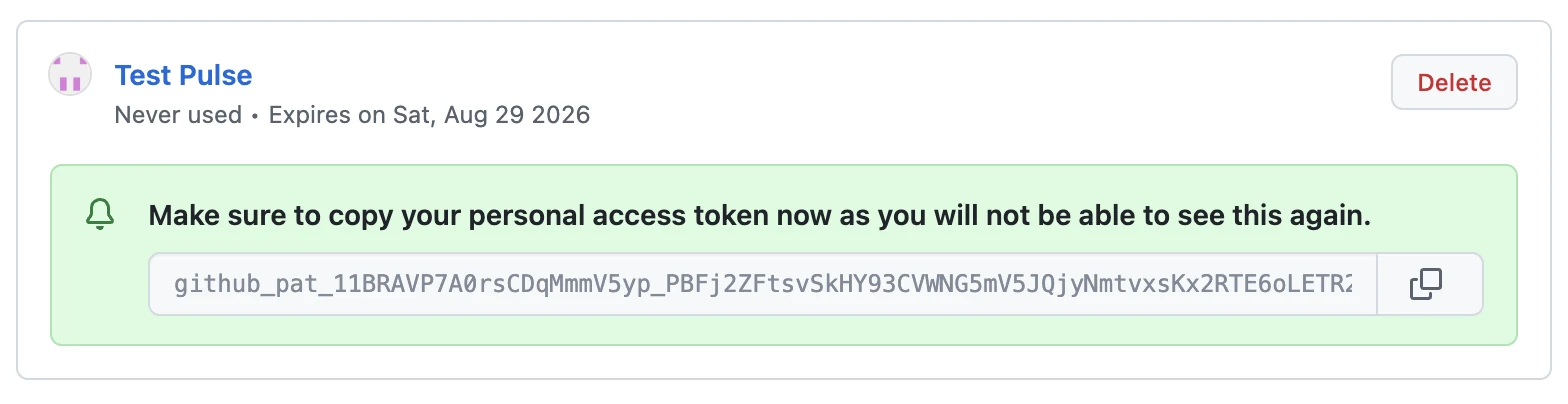
Copy the generated token to clipboard
-
Step 2: Add GitHub access token to Pulse
-
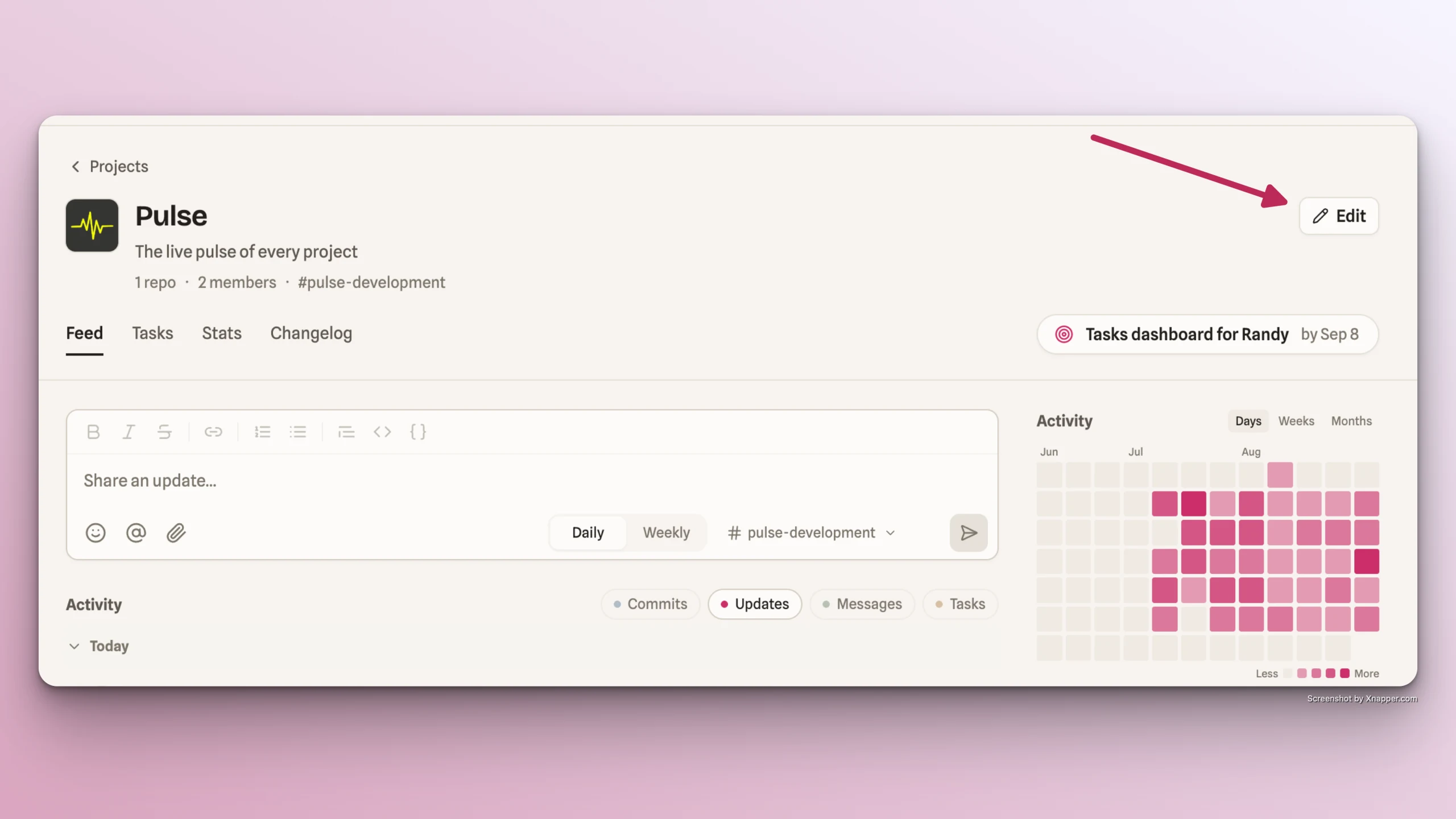
Go back to Pulse -> Сlick Edit project button
-
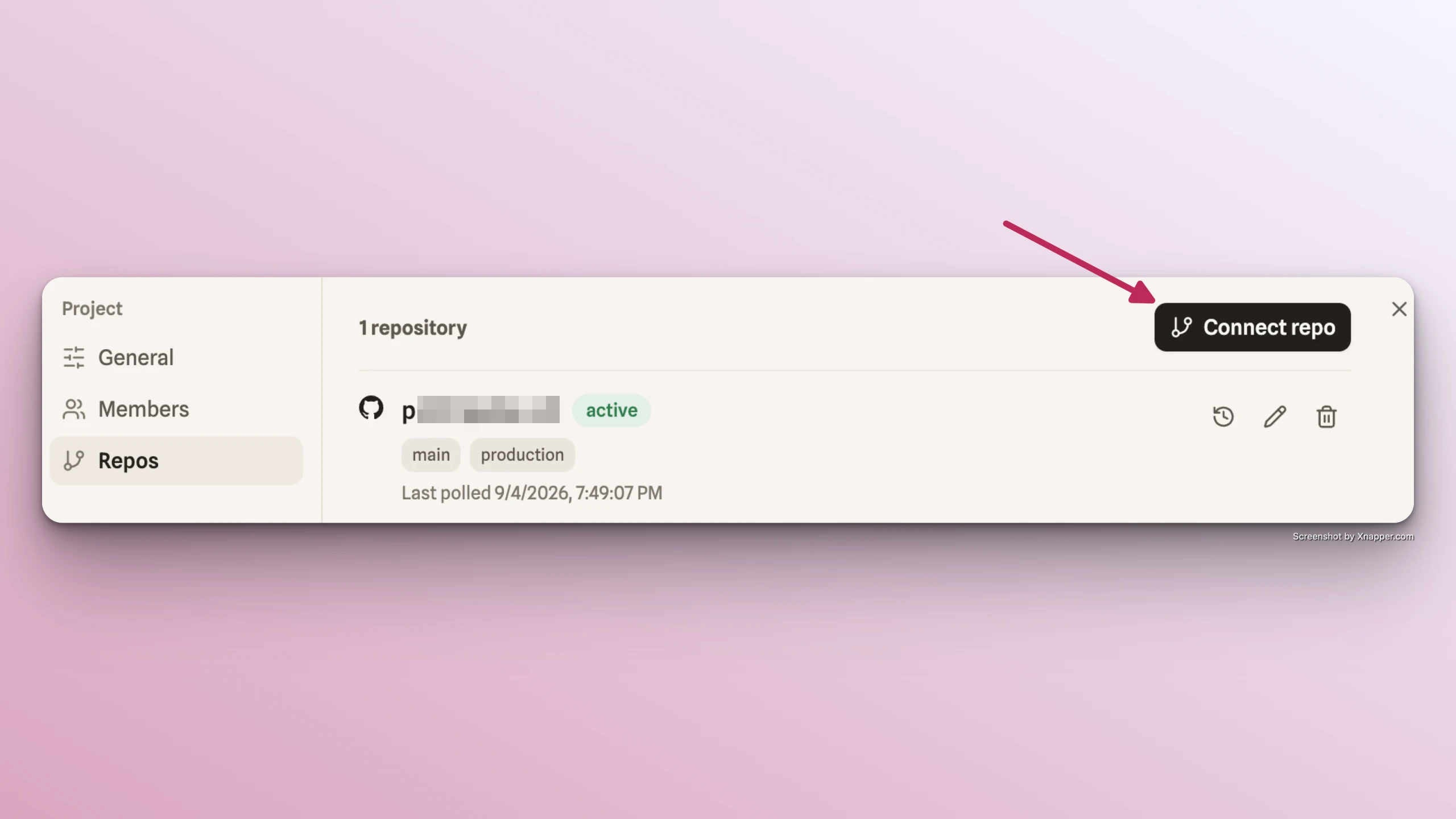
Go to Repos tab
-
Click on Connect Repo button
-
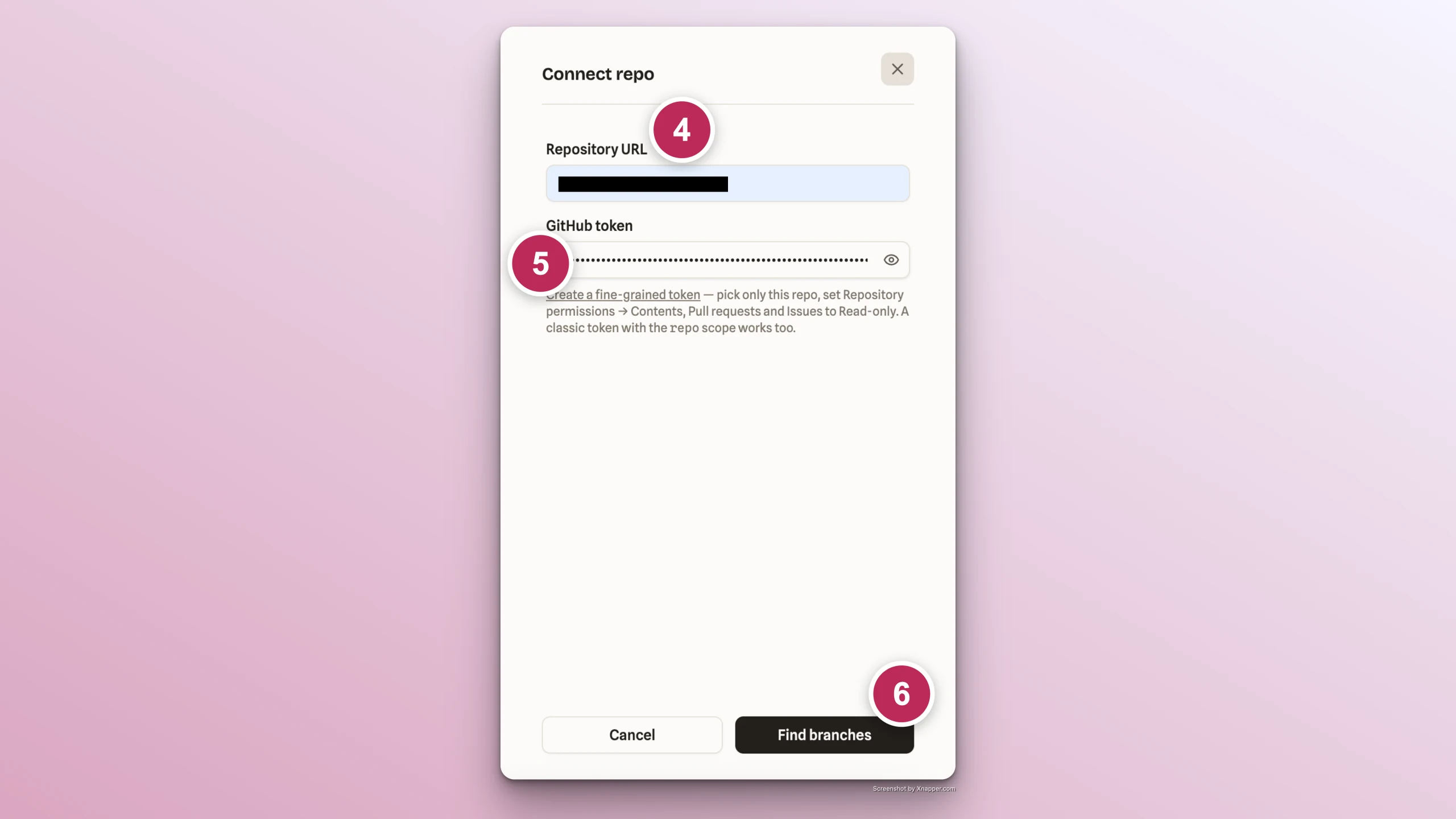
Enter your GitHub repo URL into Repository URL field
-
Paste the generated token into Github token field
-
Click Find Branches button
-
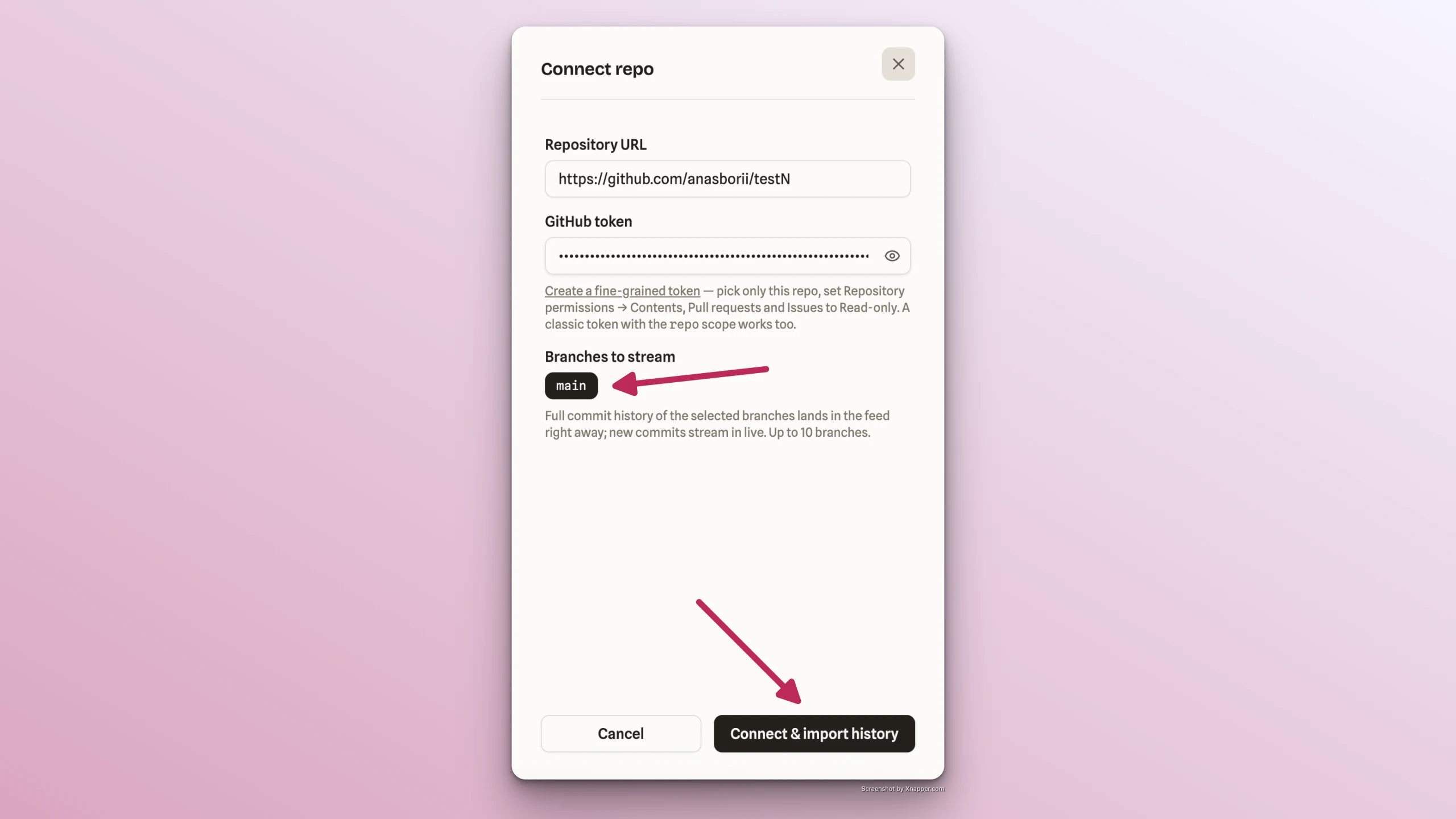
Select the branches to stream and click Connect & import history button
-
Find your repository connected in Repos tab