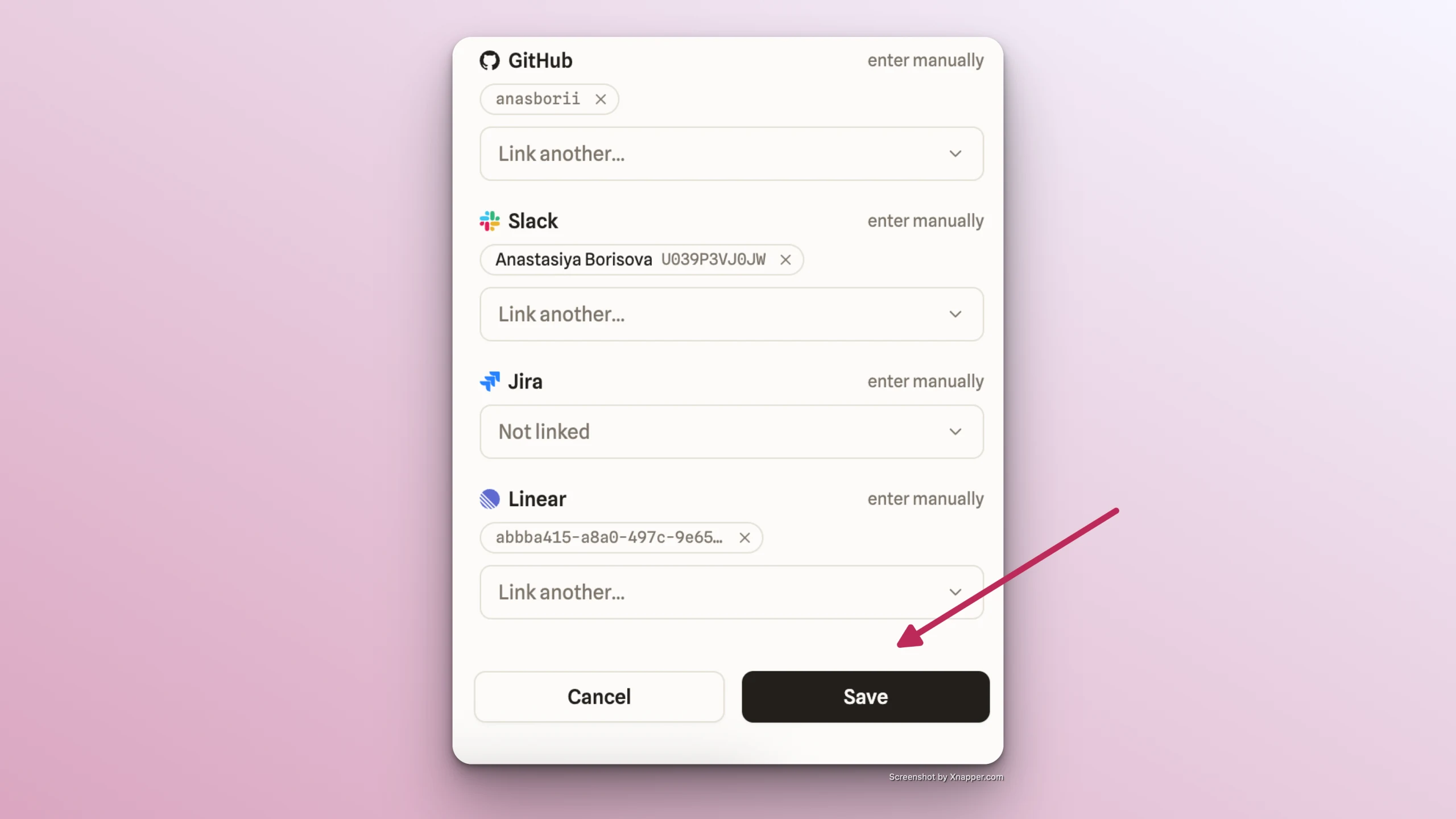
Link team members' accounts
To correctly show commits, updates, tasks, and messages in the Feed and display who they belong to you'll need to link each team member's accounts.
-
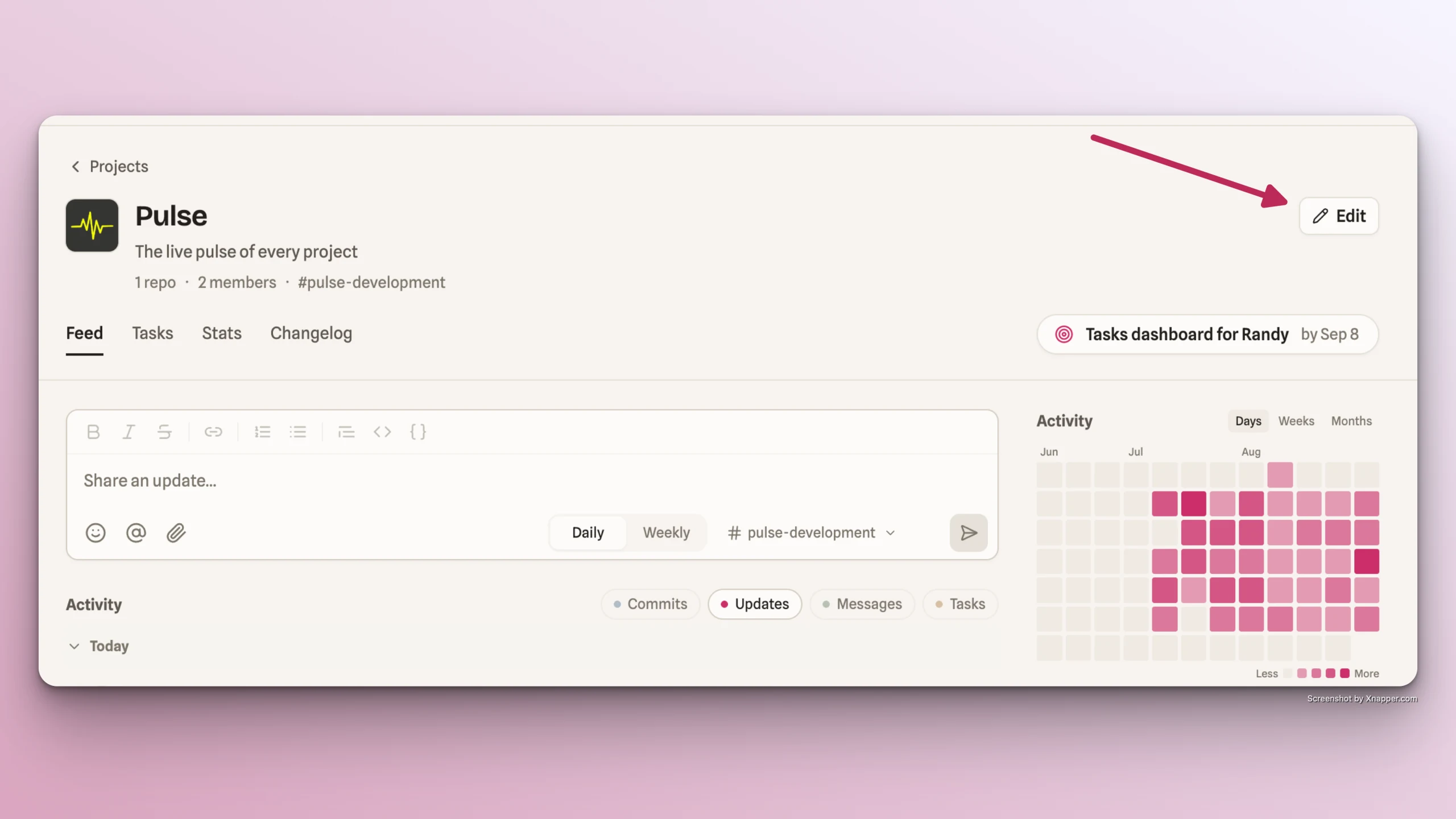
Click the Edit button at the top of your project page.
-
Go to Members tab
-
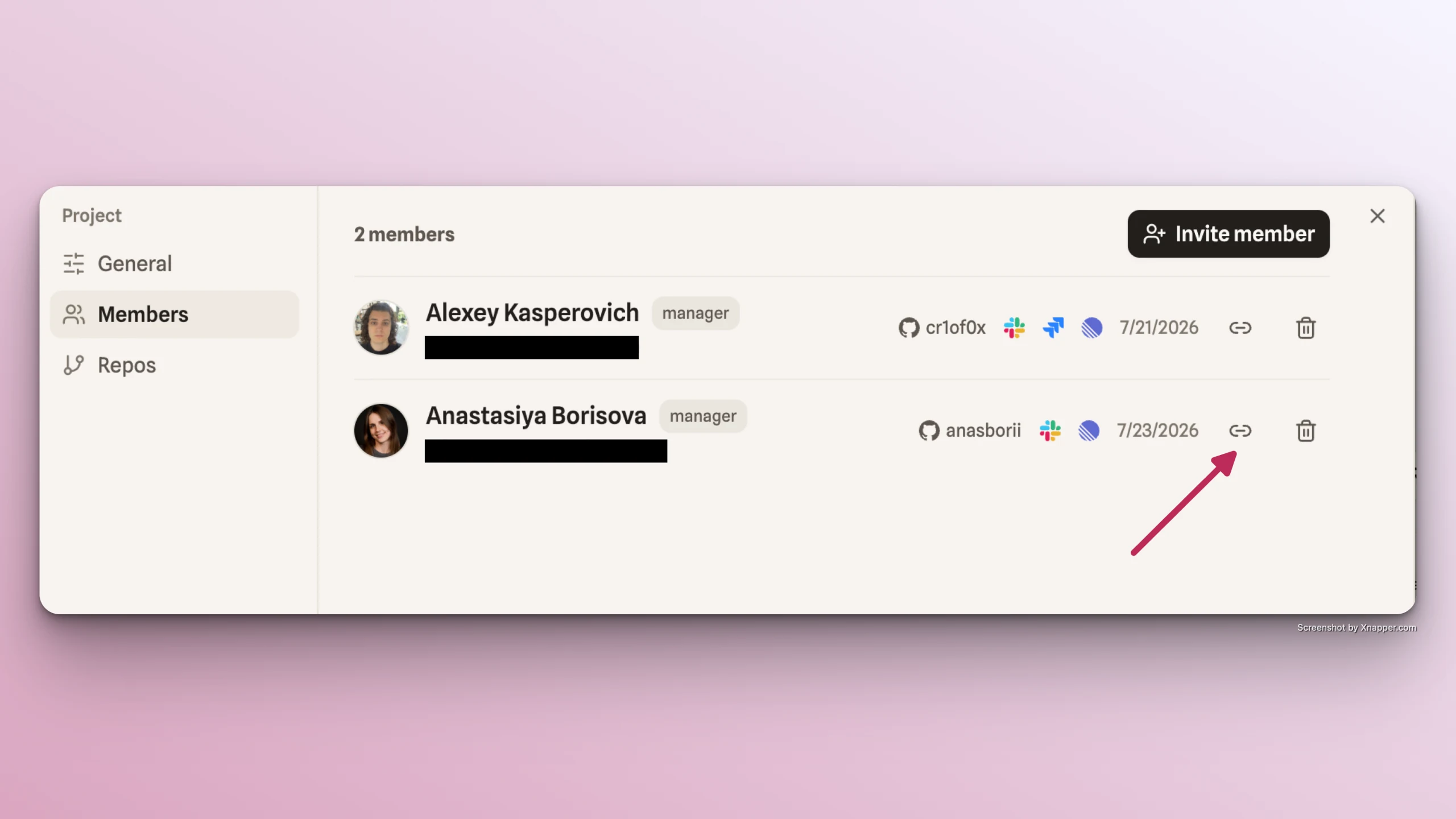
Click the Link button next to the member you want to edit.
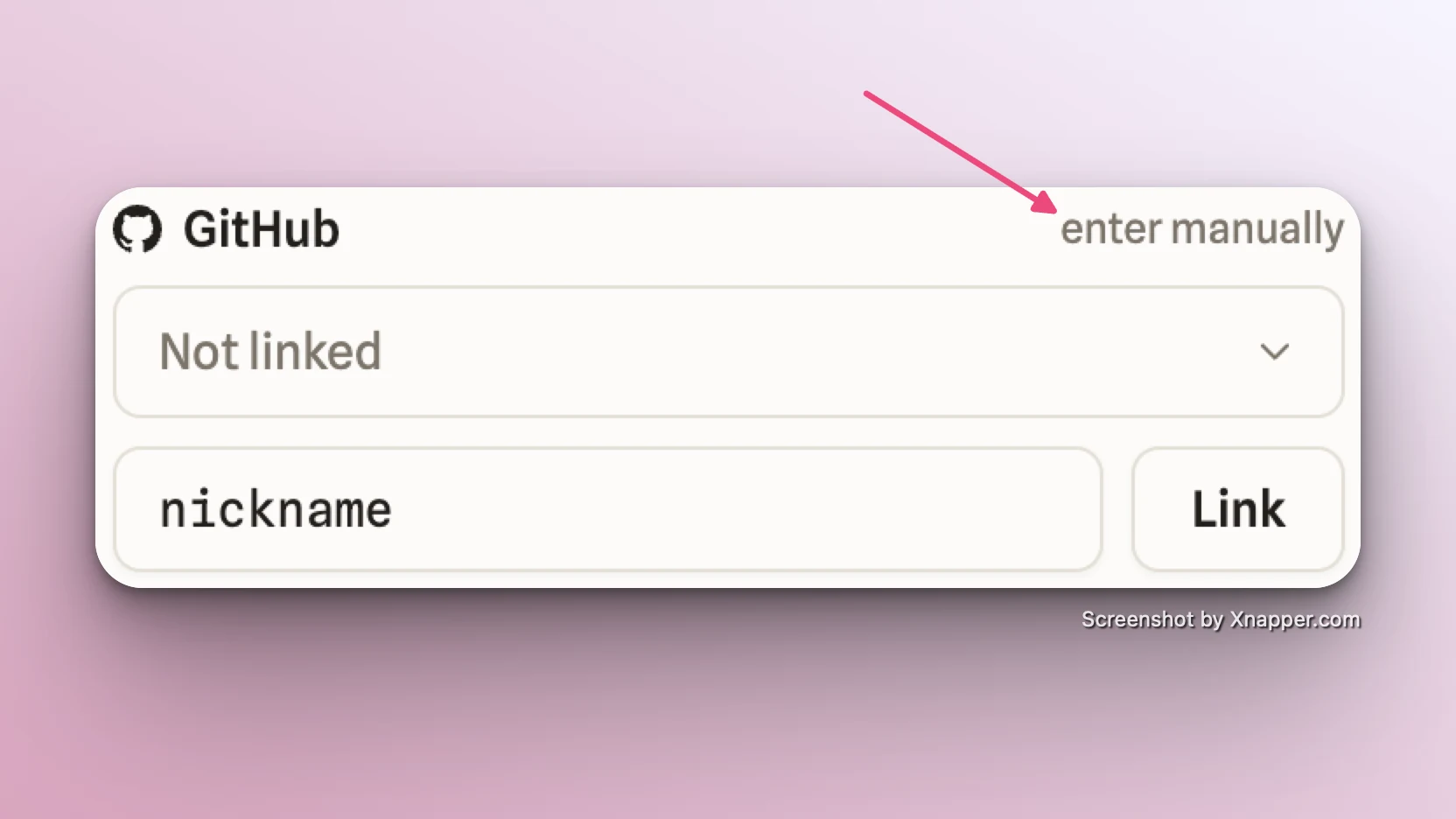
Link GitHub account
-
If the user is already in Pulse, click the Not linked dropdown and select them from the list.
-
If the user is new to Pulse, click Enter manually and type or paste their GitHub nickname.
Link Slack account
- If the user is already in Pulse, click the Not linked dropdown and select them from the list.
- If the user is new to Pulse, click Enter manually and type or paste their Slack Member ID.
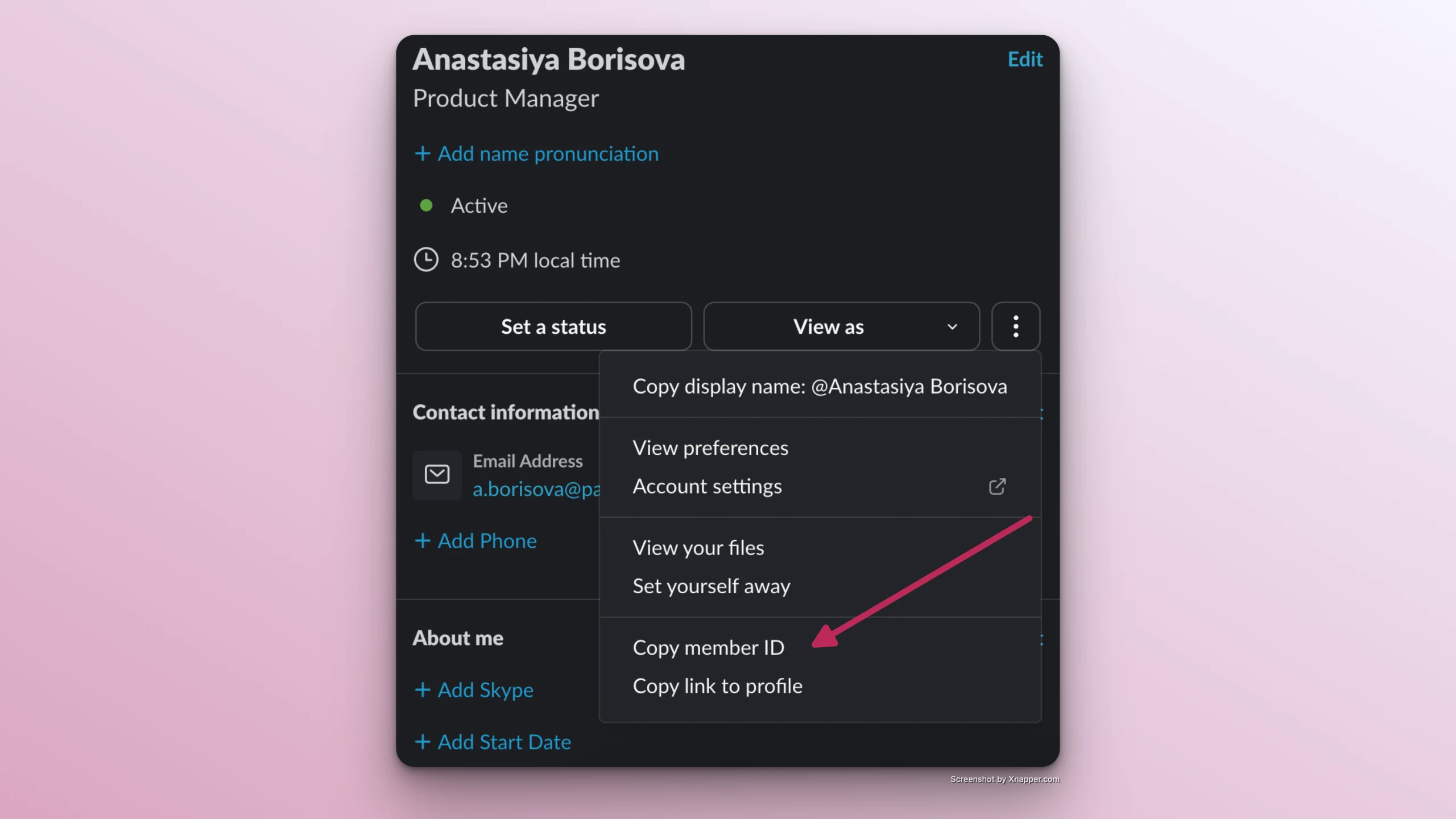
How to find your Slack Member ID
-
Open Slack
-
Click your account photo
-
Click three dots button
-
Select Copy Member ID option from the list
Link Jira account ID
To link a member's Jira account, make sure the Jira project is linked to Pulse under Feed → Sources → Jira projects.
Click the Not linked dropdown and select the member's account from the list.
Link Linear account
To link a member's Linear account, make sure the Linear project is linked to Pulse under Feed → Sources → Linear projects.
Click the Not linked dropdown and select the member's account from the list.
Save changes
After all accounts are added click Save