
Managing team members
Members list
Members tab contains the list of the project members showing the following information about each member: Full name, avatar, email, status of the integrations connection (linked/not linked): GitHub repo, Slack, Jira/Linear, date when the member joined the project.
-
Click the Edit button at the top of your project page.
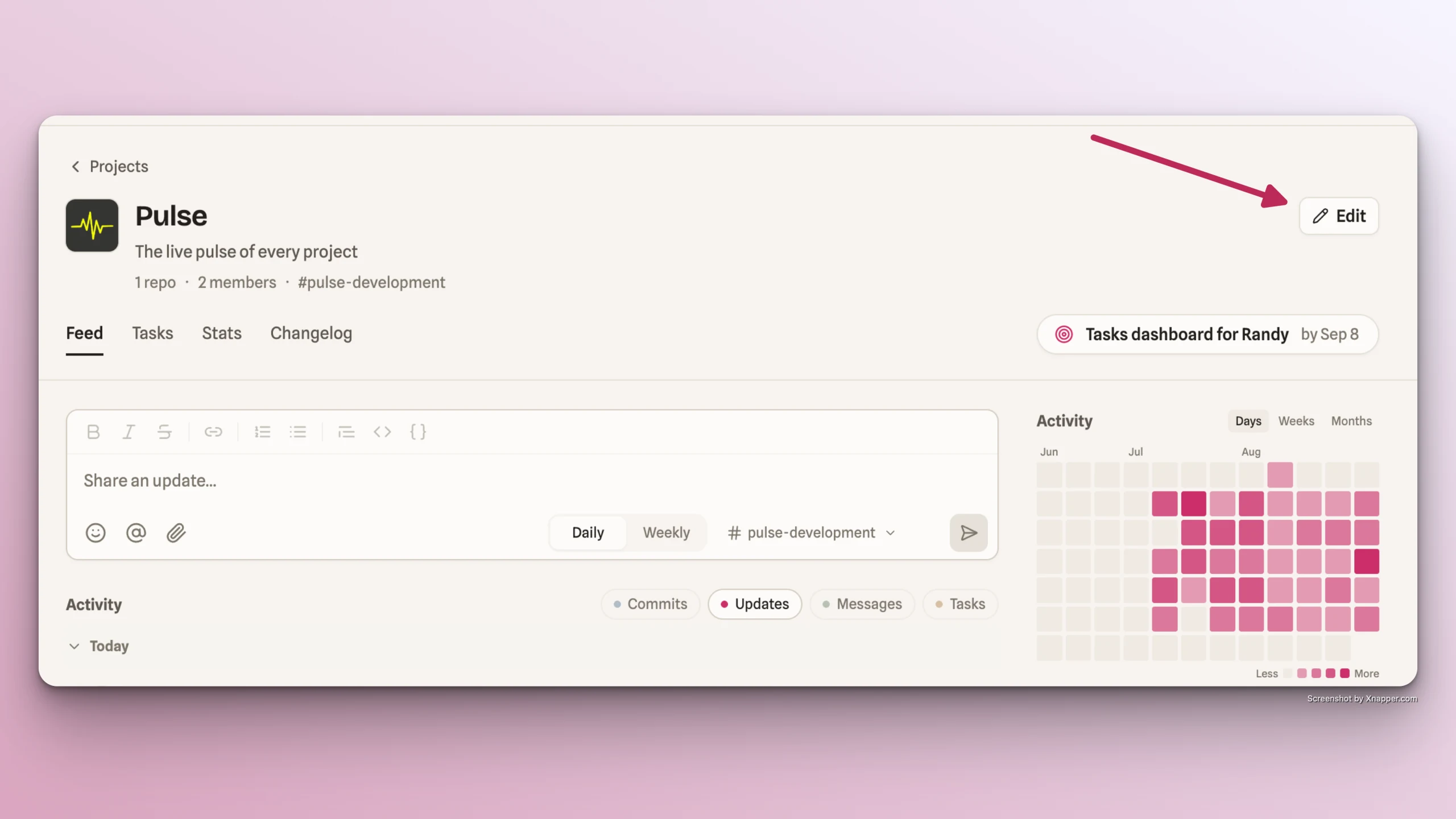
-
Go to Members tab and see all the current project members
Edit member
Clicking the link icon in a member's row within the Members list opens the Member Details drawer, which displays the following fields. All fields are viewable and editable.
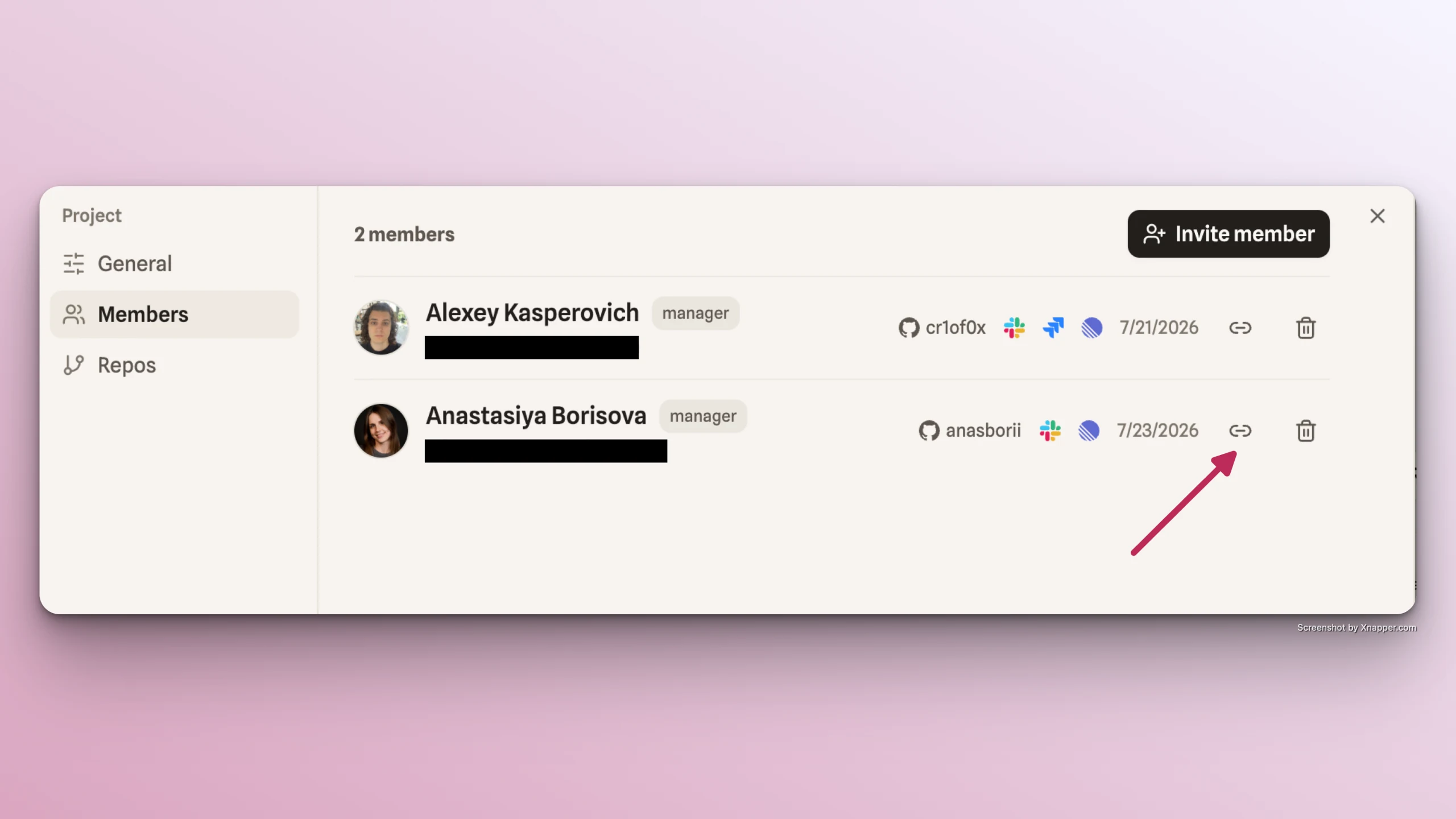
- Name
- Avatar
- Role
- Personal Github - select user's Github account from the list. If not found, click on "Enter manually" button and enter user's GitHub nickname
- Slack - select user's account Slack
- Jira - select user's account in Jira, if project Jira is linked
- Linear - select user's account in Linear, if project Linear is linked
Remove member
The member can be removed from the project as follows:
- Click on Edit project button
- Go to Members tab
- Click Remove icon in the member raw
- Confirm member's removal