
Connecting to Slack
To connect your project's Slack to Pulse, giving access to activity and history and enabling daily and weekly updates, follow the instructions below.
Step 1. Add the Pulse bot to this Slack channel
Make sure Pulse bot has been added to the Slack channel you want to connect. If it hasn't, follow the instructions in the video below:
Step 2. Connect Slack account to Pulse
-
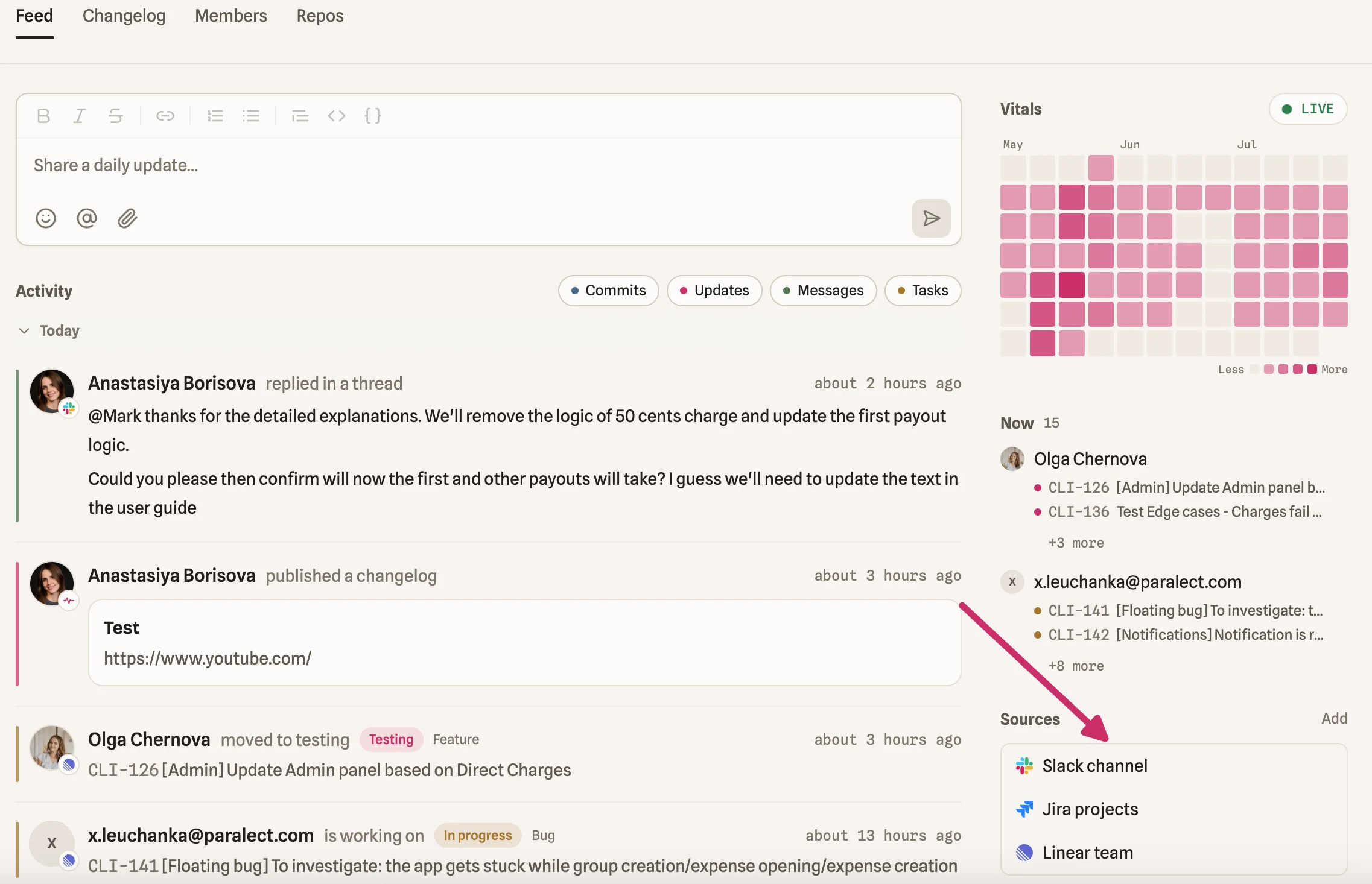
Go to Feed tab -> Sources section -> Add button -> select Slack channel
-
Search your project channel by name
-
Select the corresponding channel
-
Keep the "Bring channel messages into the feed" box selected if you only want messages sent in the channel after connecting the Slack account to appear in the project feed.
-
Check the box "Import full channel history", if you want the full slack channel history appear in the project feed
-
Click Connect to save the channel
-
Find the connected channel in Sources
Note: the first channel you connect is treated as the main channel, and daily updates are sent there by default.
Update the channel settings
-
Click the name of the Slack account in Feed -> Sources right-side section
-
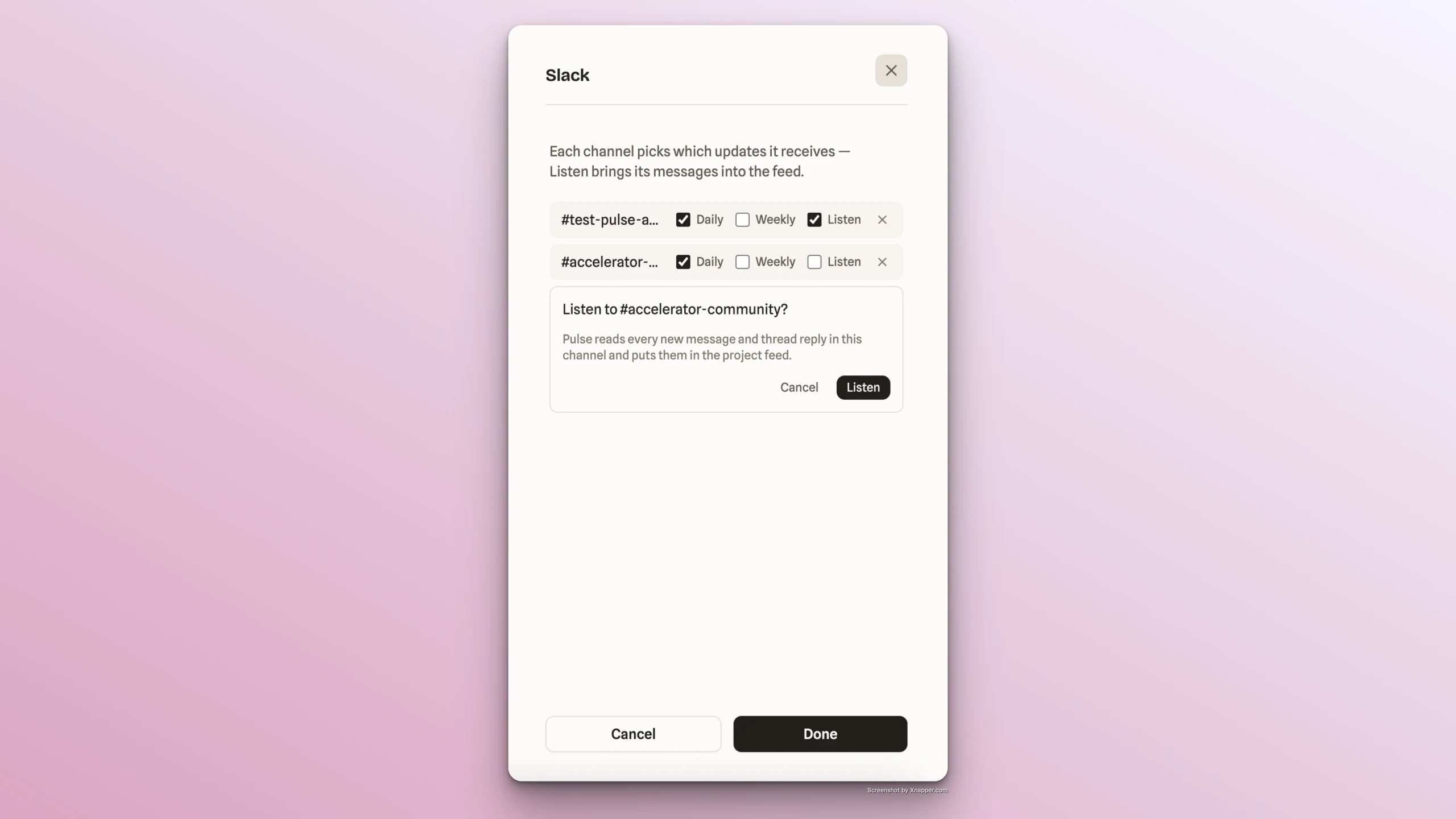
You'll see 3 checkboxes that you can update based on your preference:
-
Daily - if checked, the daily updates from the Feed will be sent to this channel
-
Weekly - if checked, the weekly updates from the Feed will be sent to this channel
-
Listen - if checked, Pulse will read every new message and thread reply in this channel and puts them in the project feed.
-