Write a Changelog
Changelog is just a list of what's changed in a product (new features, fixes, and improvements), usually organized by version or date, so users and teams can see what's new.
How to write a changelog
Changelog can be added by users with Manager role as follows:
By default, changelogs are published only within Pulse and appear in the Changelog and Feed tabs. They can also be sent to a Slack channel if that's configured in the Slack channel settings find details here.
-
Open your project in Pulse
-
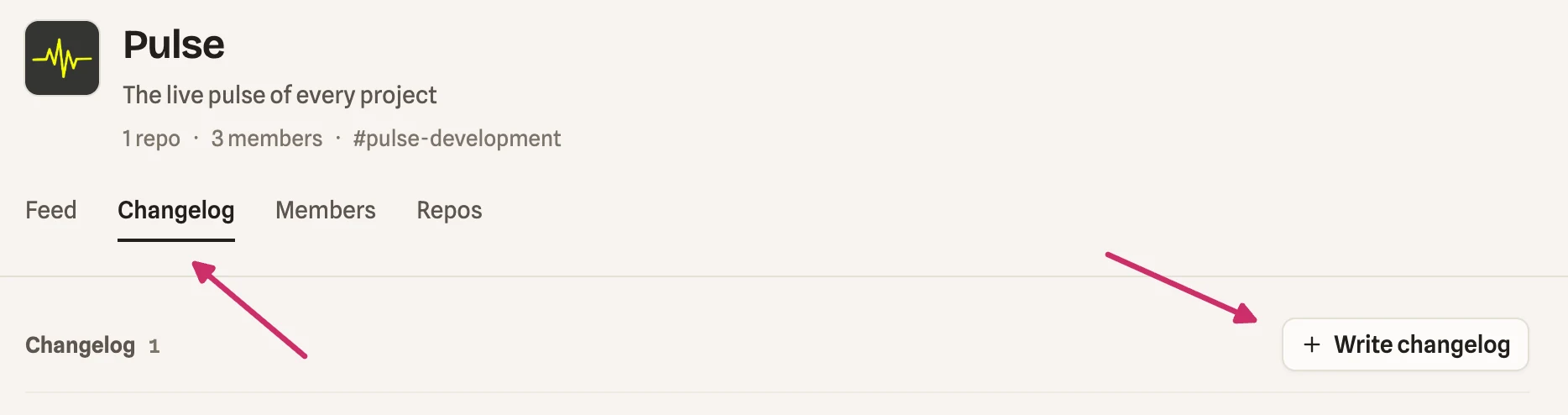
Go to Changelog tab -> click Write changelog button
-
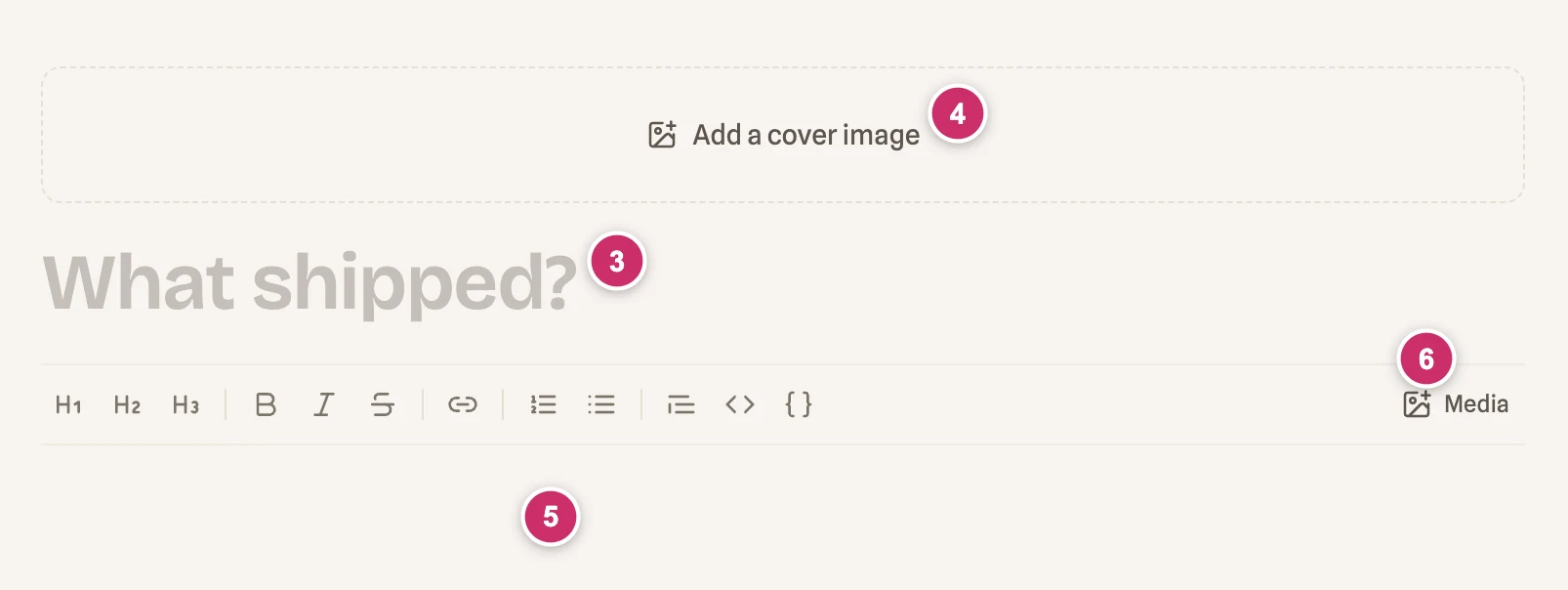
Add the Changelog title (required)
The title should be short and benefit-focused, written in plain language anyone can understand.
- Add the screenshot of the main feature in the changelog and add it to the changelog cover
The cover image should match the changelog title, so it's clear at a glance what the update is about.
- Write the changelog details either manually using text formatting tools or with the help of AI.
- Add images or videos to each changelog entry by clicking the Media button to upload, or by dragging and dropping files directly into the text editor.
Changelog generation with AI
-
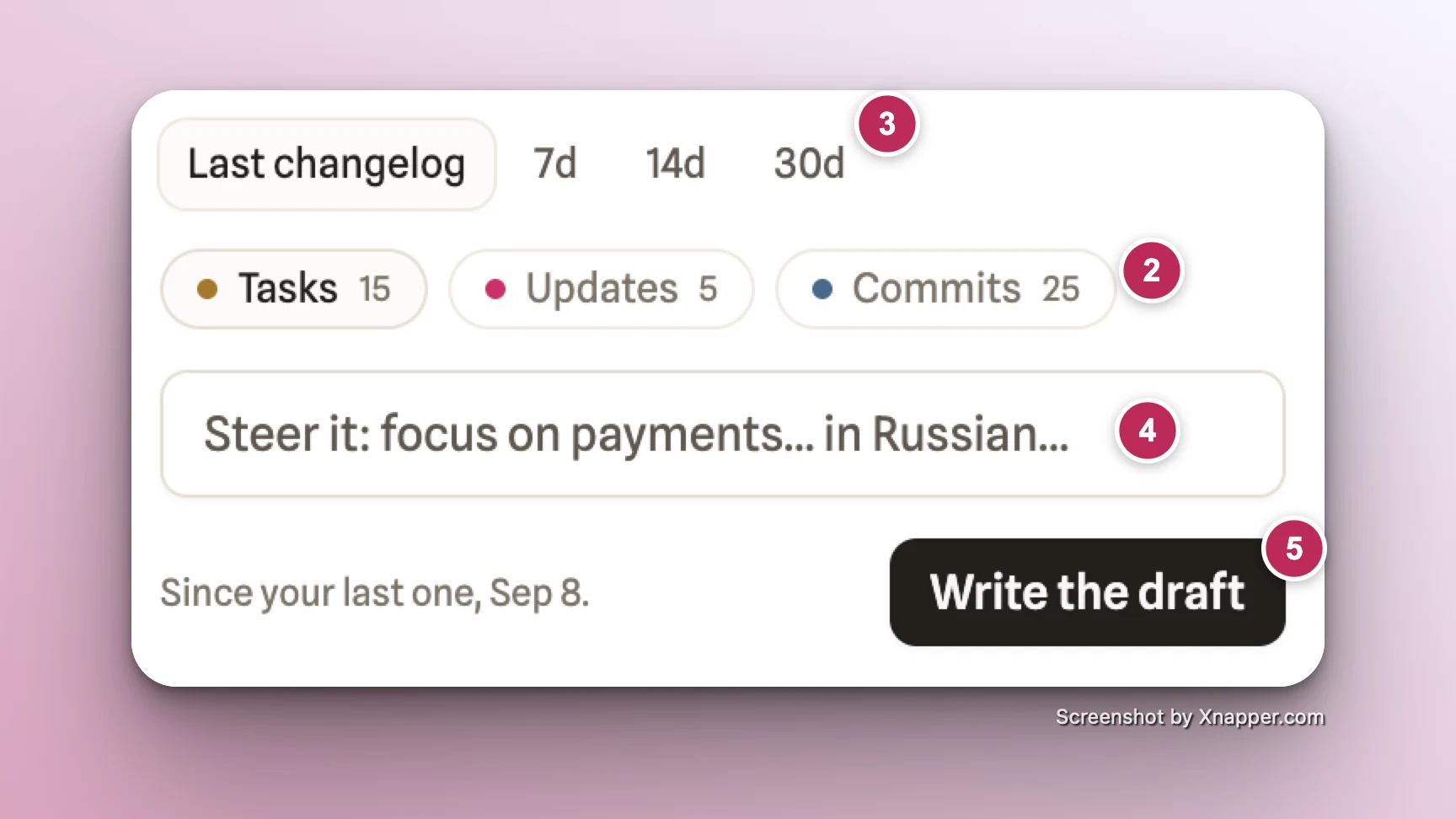
To generate a changelog with AI assistance, click the Generate button.

-
Select the data category that you want to be used for the changelog generation: Tasks/Updates/Commits.
Make sure the task tracker (Jira/Linear) and GitHub repo are connected to the project. Otherwise the AI won't have access to tasks or commits.
-
Select the time period for the data from the selected categories.
-
Add any additional instructions for the AI, e.g. the format you'd like the update generated in, the tone (formal/casual), which specific features or fixes to highlight, or anything to leave out.
-
Click Write the draft button to generate the changelog text
Manual changelog generation
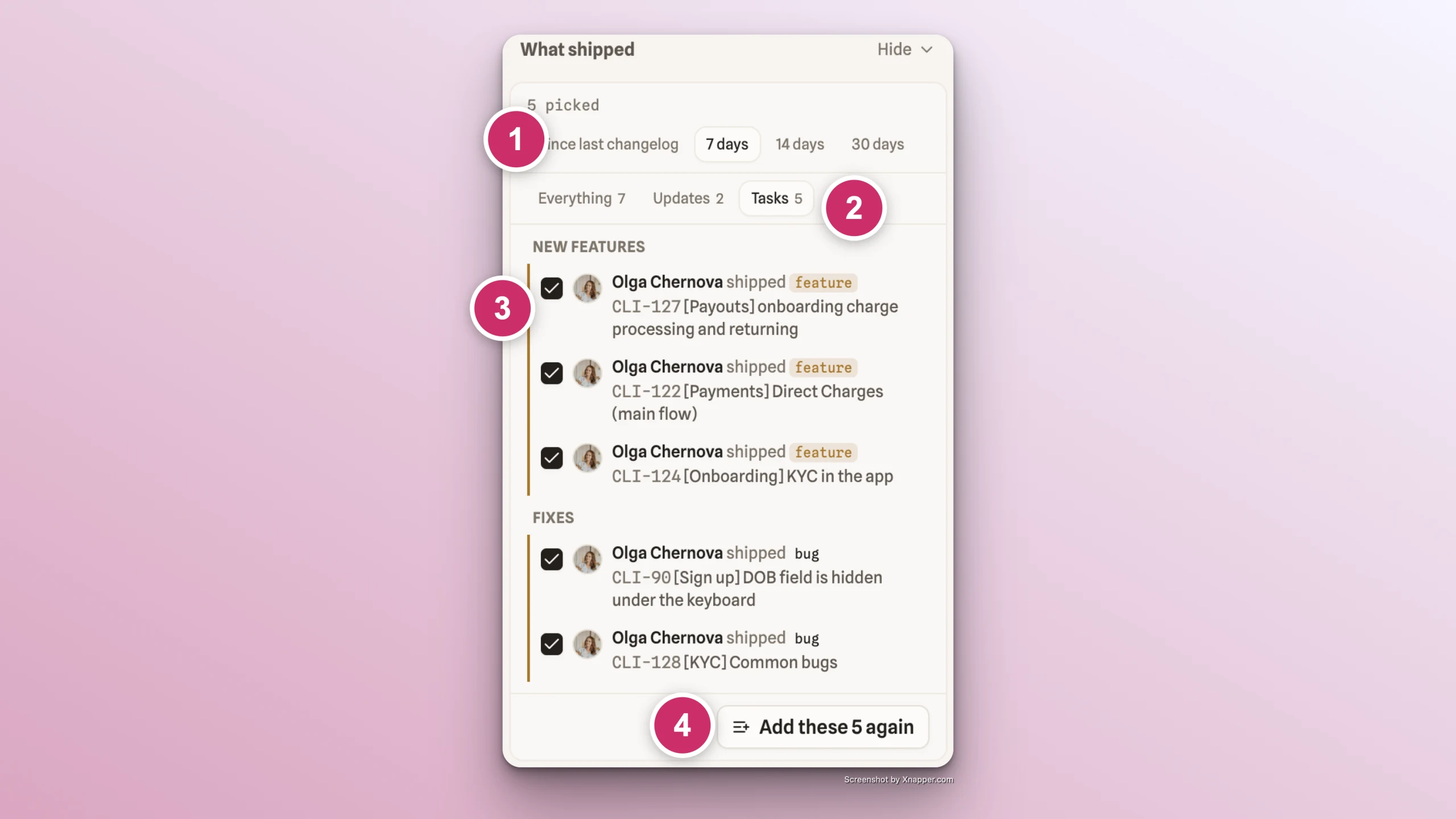
Changelogs can be written manually, or generated using the list of shipped items shown on the right. To add items from Tasks, Updates, or both into the changelog text area:
- Select the period of the changes
- Select the changes category
- Check the items you'd like to include
- Click Add